Import/ bulk upload of users
When you have more than a handful of employees, creating them one at a time on Timetastic would be too time consuming. It's in this instance you'll want to import them; which you can do from an Excel spreadsheet or directly from Slack.
Excel Upload
By creating an Excel spreadsheet of your employees you can upload them to Timetastic all in one go.
Set each employee out in Excel in the columns as below:
A. First name
B. Last name
C. Email address (optional)
D. Department (optional)
E. Employment start date (optional)
F. Leave allowance (optional)
G. Date of birth (optional)
H. Allowance in days or hours (optional)
Notes:
- You don't need any header rows.
- Check your date formats are correct. Excel can do funny things with formats.
- Make sure your columns are in the correct order.
- Timetastic will default to a daily allowance if column H is left bank.
- If there's a particular optional field that you are not using, leave the corresponding column blank.
- If you have a 'Full backup' report from Timetastic you can upload your users from there too. Just attach the entire spreadsheet.
You can see here what an example file might look like:
Once you've created your Excel file, head to USERS and '+ Add someone'.
Select 'Import users'.
Select or drag your file into the 'Start by dropping a file here' field.
Finally, you'll be presented with a confirmation screen with any potential errors highlighted.
You can select to send an email invite to all users, otherwise you can do this later using the re-send invite function.
And when you're ready just click 'Confirm import'.
Once your employees are uploaded, you can view or edit their profiles on the USERS page.
Slack Import
If your organisation have a Slack account, you can import your staff directly into Timetastic.
Head to USERS and '+ Add someone'.
Select 'Import users'.
Scroll down and click 'Import from Slack'.
If you're not already, sign into your Slack workspace then you'll be asked to grant access.
You'll see confirmation of the imported employees, with any potential errors highlighted.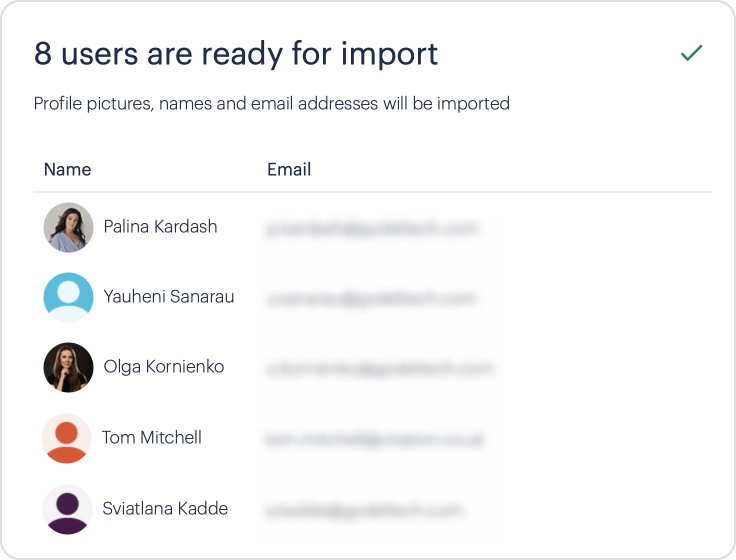
You can send an email invite to all the users immediately, or untick this option and send later using the re-send invite function.
And when you're ready just click 'Confirm import'.
Note: To switch on public holidays, set allowances or switch on accruals in bulk, see Multi Select / Bulk Admin of Users